
Guide · Cross-Industry
Local AI for Hobbyists: The Best Low-Budget Setup
A practical buying and setup guide for hobbyists building a low-budget local AI box, covering used RTX 3090 builds, RTX 4060 Ti 16GB systems, RTX 4070 Ti Super and RTX 4080 Super options, Apple unified memory, and beginner software stacks.
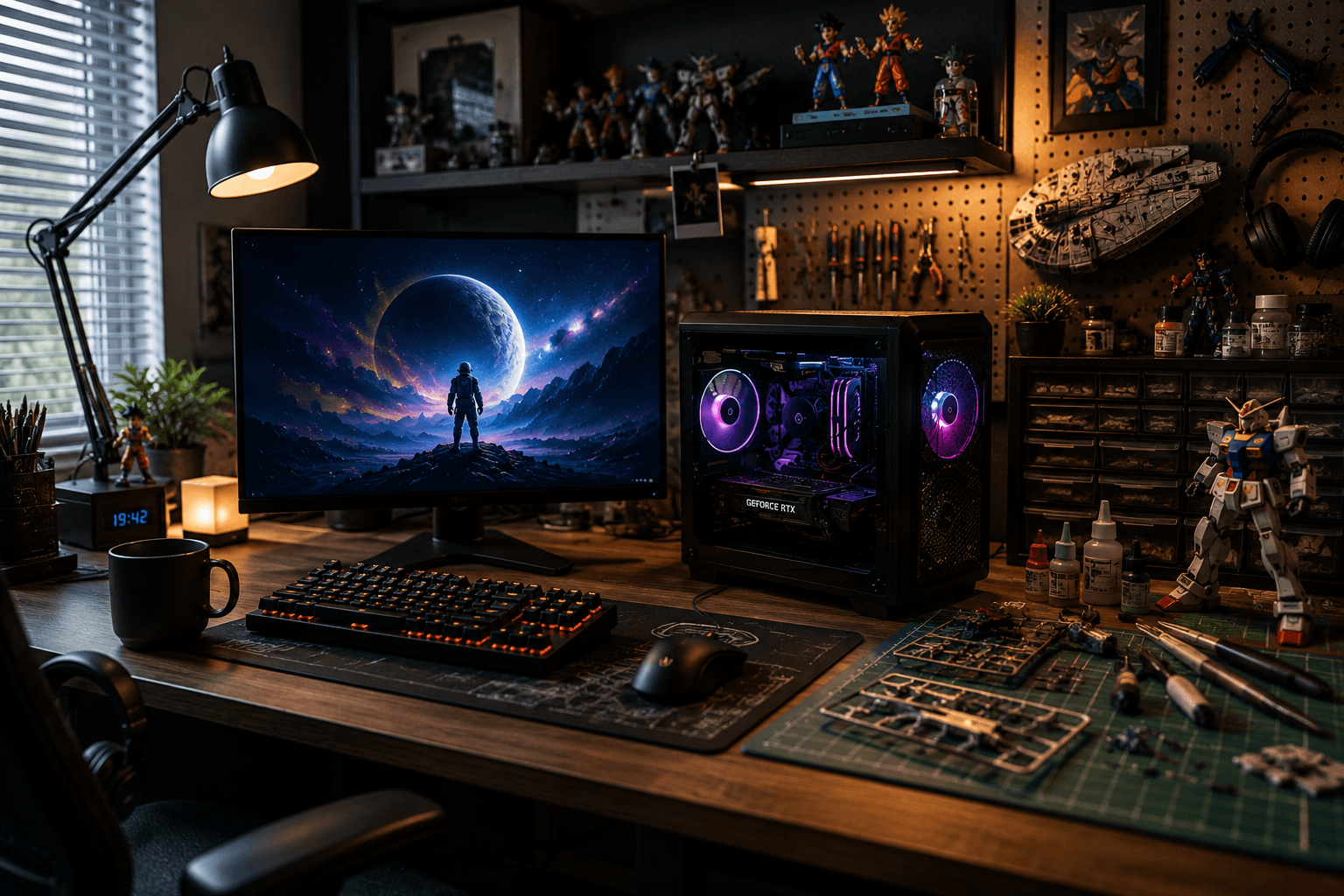
The hobbyist local AI build is not about pretending a basement desktop is a hyperscale cluster. It is about getting useful private inference, document chat, coding help, image generation, and model experimentation without turning the project into an expensive science fair volcano. The right hobbyist system should be affordable, repairable, loud only when it needs to be, and simple enough that you spend more time using models than debugging drivers.
The realistic budget range is $500 to $2,500. Below that, the best answer is usually an existing computer plus Ollama or LM Studio. Above that, the build starts drifting into small-business territory. The key tradeoff is straightforward: you are buying VRAM first, memory bandwidth second, and convenience third. CPU cores matter, but they are not the center of the system unless you are intentionally building a CPU-heavy llama.cpp box.
Foundation: Build Your First Local AI Server
The broader Black Scarab guide to local AI infrastructure, VRAM math, bandwidth, and inference software.
AI Hardware Roadmap
A wider view of the hardware platforms shaping edge AI, local AI, and physical AI deployments.
Intel OpenVINO Deployment Guide
A deeper look at model optimization, cross-platform inference, and enterprise edge deployment patterns.
1. Reader Profile
This guide is for the person who wants local AI at home for learning, privacy, experimentation, coding, writing, document search, and maybe image generation. You care about cost, model fit, electricity, noise, resale value, and whether the machine can run common open models without constantly falling back to cloud tools.
The hobbyist should avoid enterprise instincts. You do not need Kubernetes, rackmount redundancy, complex identity, or a separate storage fabric. You need one dependable box, a small set of models, a simple UI, and a clean backup habit. If the machine becomes too complicated to maintain, the local AI project usually dies before it becomes useful.
2. Budget Range
The practical hobbyist budget range is $500 to $2,500. At the low end, the right path is often to use a computer you already own and install Ollama or LM Studio. In the middle, an RTX 4060 Ti 16GB or used RTX 3090 build becomes attractive. At the upper end, a cleaner RTX 4070 Ti Super, RTX 4080 Super, or Apple unified-memory option can make the setup quieter and more reliable, but not always better value.
All pricing should be manually verified before purchase. GPU prices, used workstation prices, Apple configurations, and power costs move constantly. Treat the ranges below as planning numbers, not quotes.
Hobbyist Budget Bands
$500-$900
Likely Setup
Existing PC or used desktop plus modest GPU
What It Buys
Basic 7B and 13B experimentation, local chat, small coding models.
Main Risk
Limited VRAM, inconsistent used parts, weak upgrade path.
$900-$1,500
Likely Setup
RTX 4060 Ti 16GB build or used RTX 3090 desktop
What It Buys
A real local AI starter box with enough VRAM for useful quantized models.
Main Risk
4060 Ti bandwidth is limited; RTX 3090 power and thermals need respect.
$1,500-$2,500
Likely Setup
RTX 4070 Ti Super, RTX 4080 Super, better used RTX 3090 workstation, or Apple unified-memory option
What It Buys
Cleaner daily machine, stronger image generation, better reliability.
Main Risk
Diminishing returns if the use case is only occasional chat.
| Budget | Likely Setup | What It Buys | Main Risk |
|---|---|---|---|
| $500-$900 | Existing PC or used desktop plus modest GPU | Basic 7B and 13B experimentation, local chat, small coding models. | Limited VRAM, inconsistent used parts, weak upgrade path. |
| $900-$1,500 | RTX 4060 Ti 16GB build or used RTX 3090 desktop | A real local AI starter box with enough VRAM for useful quantized models. | 4060 Ti bandwidth is limited; RTX 3090 power and thermals need respect. |
| $1,500-$2,500 | RTX 4070 Ti Super, RTX 4080 Super, better used RTX 3090 workstation, or Apple unified-memory option | Cleaner daily machine, stronger image generation, better reliability. | Diminishing returns if the use case is only occasional chat. |
If this is your first local AI machine, do not spend the top of the range until you know what you actually run every week.
3. Configuration Options
The hobbyist market has five realistic paths. The used RTX 3090 desktop is the value king when you can tolerate power draw, heat, and used-hardware risk. The RTX 4060 Ti 16GB build is calmer and cheaper to run, but its memory bandwidth is not in the same class. The RTX 4070 Ti Super and RTX 4080 Super builds are cleaner gaming-plus-AI systems. Apple unified memory is quiet and simple, but not the fastest path for CUDA-heavy workflows. The cheapest path is still an existing gaming PC plus Ollama or LM Studio.
Hobbyist Configuration Comparison
Used NVIDIA RTX 3090 desktop build
Approx. Cost
$900-$1,600
Advantages
24GB VRAM, strong bandwidth, good value for 13B, 34B, and some 70B quantized experimentation.
Disadvantages
Used card risk, high power draw, heat, noise, larger case and PSU requirements.
NVIDIA RTX 4060 Ti 16GB build
Approx. Cost
$800-$1,300
Advantages
Newer card, lower power, 16GB VRAM, simple beginner build for 7B and 13B models.
Disadvantages
Narrow memory bus and lower bandwidth make it feel weaker than the VRAM number suggests.
RTX 4070 Ti Super / RTX 4080 Super build
Approx. Cost
$1,500-$2,500
Advantages
Good all-around desktop, strong image generation, better thermals than used 3090 builds.
Disadvantages
Usually 16GB VRAM, so larger models are limited despite strong compute.
Apple Mac mini or Mac Studio unified-memory option
Approx. Cost
$1,400-$3,000+
Advantages
Quiet, compact, efficient, simple for local chat and document workflows.
Disadvantages
Not CUDA, slower than high-end discrete GPU VRAM for many decode and image-generation workflows.
Existing gaming PC plus Ollama / LM Studio
Approx. Cost
$0-$300 software and storage upgrades
Advantages
Fastest path to learning; no new machine required.
Disadvantages
Limited by whatever GPU, RAM, thermals, and storage you already own.
| Configuration | Approx. Cost | Advantages | Disadvantages |
|---|---|---|---|
| Used NVIDIA RTX 3090 desktop build | $900-$1,600 | 24GB VRAM, strong bandwidth, good value for 13B, 34B, and some 70B quantized experimentation. | Used card risk, high power draw, heat, noise, larger case and PSU requirements. |
| NVIDIA RTX 4060 Ti 16GB build | $800-$1,300 | Newer card, lower power, 16GB VRAM, simple beginner build for 7B and 13B models. | Narrow memory bus and lower bandwidth make it feel weaker than the VRAM number suggests. |
| RTX 4070 Ti Super / RTX 4080 Super build | $1,500-$2,500 | Good all-around desktop, strong image generation, better thermals than used 3090 builds. | Usually 16GB VRAM, so larger models are limited despite strong compute. |
| Apple Mac mini or Mac Studio unified-memory option | $1,400-$3,000+ | Quiet, compact, efficient, simple for local chat and document workflows. | Not CUDA, slower than high-end discrete GPU VRAM for many decode and image-generation workflows. |
| Existing gaming PC plus Ollama / LM Studio | $0-$300 software and storage upgrades | Fastest path to learning; no new machine required. | Limited by whatever GPU, RAM, thermals, and storage you already own. |
RTX 5090-class pricing is intentionally excluded from the hobbyist default because it usually pushes the build out of low-budget territory. Verify all street prices before buying.
4. Cost Table
A useful hobbyist cost model should include more than the GPU. Storage, power, cooling, and maintenance matter because the box will sit in your room, not a datacenter. The local system becomes cheaper than cloud when you use it often, care about privacy, or run enough experimentation that subscriptions and API bills become annoying.
Hobbyist Local AI Cost Model
Hardware upfront cost
Typical Range
$500-$2,500
What to Verify
Used GPU condition, PSU quality, case airflow, warranty, return policy.
Cloud Alternative
No upfront cost, but recurring subscription or API spend.
GPU / accelerator cost
Typical Range
$250-$1,200+
What to Verify
VRAM, memory bandwidth, CUDA support, card length, power connectors.
Cloud Alternative
Included in provider pricing, but not owned by you.
Storage cost
Typical Range
$80-$250
What to Verify
At least 1TB SSD; 2TB is more comfortable for models and datasets.
Cloud Alternative
Provider stores model infrastructure; your files still need a workflow.
Networking cost
Typical Range
$0-$150
What to Verify
Gigabit Ethernet is fine for one user; Wi-Fi is acceptable for casual use.
Cloud Alternative
Cloud requires reliable internet every time.
Power estimate
Typical Range
100W-500W under load
What to Verify
Local electricity rate and GPU power limit settings.
Cloud Alternative
Cloud shifts power cost into subscription or usage pricing.
Cooling considerations
Typical Range
$0-$200
What to Verify
Airflow, room heat, GPU temperature, fan noise.
Cloud Alternative
Provider handles cooling.
Software cost
Typical Range
$0 for core stack
What to Verify
Ollama, LM Studio, Open WebUI, llama.cpp, ComfyUI licensing and update cadence.
Cloud Alternative
Cloud tools are polished but recurring.
Maintenance burden
Typical Range
Low to medium
What to Verify
Driver updates, model storage, backups, dust, failed used components.
Cloud Alternative
Cloud maintenance is mostly outsourced.
When local becomes cheaper
Typical Range
Often after 6-24 months
What to Verify
Depends on hardware cost, cloud subscriptions replaced, and API usage avoided.
Cloud Alternative
Cloud remains cheaper for rare or bursty use.
| Cost Area | Typical Range | What to Verify | Cloud Alternative |
|---|---|---|---|
| Hardware upfront cost | $500-$2,500 | Used GPU condition, PSU quality, case airflow, warranty, return policy. | No upfront cost, but recurring subscription or API spend. |
| GPU / accelerator cost | $250-$1,200+ | VRAM, memory bandwidth, CUDA support, card length, power connectors. | Included in provider pricing, but not owned by you. |
| Storage cost | $80-$250 | At least 1TB SSD; 2TB is more comfortable for models and datasets. | Provider stores model infrastructure; your files still need a workflow. |
| Networking cost | $0-$150 | Gigabit Ethernet is fine for one user; Wi-Fi is acceptable for casual use. | Cloud requires reliable internet every time. |
| Power estimate | 100W-500W under load | Local electricity rate and GPU power limit settings. | Cloud shifts power cost into subscription or usage pricing. |
| Cooling considerations | $0-$200 | Airflow, room heat, GPU temperature, fan noise. | Provider handles cooling. |
| Software cost | $0 for core stack | Ollama, LM Studio, Open WebUI, llama.cpp, ComfyUI licensing and update cadence. | Cloud tools are polished but recurring. |
| Maintenance burden | Low to medium | Driver updates, model storage, backups, dust, failed used components. | Cloud maintenance is mostly outsourced. |
| When local becomes cheaper | Often after 6-24 months | Depends on hardware cost, cloud subscriptions replaced, and API usage avoided. | Cloud remains cheaper for rare or bursty use. |
For hobbyists, the financial case is strongest when the machine is also useful as a normal desktop, gaming PC, coding box, or media workstation.
5. Component Breakdown
The best-value hobbyist build is usually boring: a modern 6-core or 8-core CPU, one NVIDIA GPU, 64GB of system RAM if the budget allows, 1TB to 2TB of NVMe storage, a reliable PSU, and a case that can breathe. The GPU matters most, but a cheap power supply or cramped case can ruin the whole system.
Main Configuration Component Breakdown
CPU
Used RTX 3090 Build
Ryzen 5/7 or Intel Core i5/i7; avoid overspending.
RTX 4060 Ti 16GB Build
Modern Ryzen 5/7 or Intel Core i5/i7.
Apple Unified-Memory Option
Apple Silicon integrated CPU.
GPU / accelerator
Used RTX 3090 Build
RTX 3090 24GB, used condition manually verified.
RTX 4060 Ti 16GB Build
RTX 4060 Ti 16GB, new or lightly used.
Apple Unified-Memory Option
Integrated Apple GPU and Neural Engine.
VRAM / unified memory
Used RTX 3090 Build
24GB VRAM.
RTX 4060 Ti 16GB Build
16GB VRAM.
Apple Unified-Memory Option
32GB-96GB+ unified memory depending on configuration.
System RAM
Used RTX 3090 Build
32GB minimum, 64GB preferred.
RTX 4060 Ti 16GB Build
32GB minimum, 64GB preferred.
Apple Unified-Memory Option
Unified memory is shared by system and model.
Storage
Used RTX 3090 Build
1TB minimum, 2TB preferred NVMe.
RTX 4060 Ti 16GB Build
1TB minimum, 2TB preferred NVMe.
Apple Unified-Memory Option
1TB preferred if storing multiple models locally.
Networking
Used RTX 3090 Build
1GbE is enough; 2.5GbE optional.
RTX 4060 Ti 16GB Build
1GbE is enough; 2.5GbE optional.
Apple Unified-Memory Option
Wi-Fi or Ethernet; 10GbE only if moving large datasets.
Power supply
Used RTX 3090 Build
850W quality PSU preferred.
RTX 4060 Ti 16GB Build
550W-650W quality PSU usually enough.
Apple Unified-Memory Option
External Apple power design.
Cooling
Used RTX 3090 Build
High airflow case; watch GPU memory temperatures.
RTX 4060 Ti 16GB Build
Standard airflow is usually fine.
Apple Unified-Memory Option
Quiet integrated cooling.
Operating system
Used RTX 3090 Build
Ubuntu, Windows, or dual boot.
RTX 4060 Ti 16GB Build
Ubuntu or Windows.
Apple Unified-Memory Option
macOS.
AI runtime stack
Used RTX 3090 Build
Ollama, LM Studio, Open WebUI, llama.cpp, ComfyUI.
RTX 4060 Ti 16GB Build
Ollama, LM Studio, Open WebUI.
Apple Unified-Memory Option
Ollama, LM Studio, MLX, Open WebUI.
Management layer
Used RTX 3090 Build
Local browser UI and simple backups.
RTX 4060 Ti 16GB Build
Local browser UI and simple backups.
Apple Unified-Memory Option
Local apps plus Time Machine or external backup.
| Component | Used RTX 3090 Build | RTX 4060 Ti 16GB Build | Apple Unified-Memory Option |
|---|---|---|---|
| CPU | Ryzen 5/7 or Intel Core i5/i7; avoid overspending. | Modern Ryzen 5/7 or Intel Core i5/i7. | Apple Silicon integrated CPU. |
| GPU / accelerator | RTX 3090 24GB, used condition manually verified. | RTX 4060 Ti 16GB, new or lightly used. | Integrated Apple GPU and Neural Engine. |
| VRAM / unified memory | 24GB VRAM. | 16GB VRAM. | 32GB-96GB+ unified memory depending on configuration. |
| System RAM | 32GB minimum, 64GB preferred. | 32GB minimum, 64GB preferred. | Unified memory is shared by system and model. |
| Storage | 1TB minimum, 2TB preferred NVMe. | 1TB minimum, 2TB preferred NVMe. | 1TB preferred if storing multiple models locally. |
| Networking | 1GbE is enough; 2.5GbE optional. | 1GbE is enough; 2.5GbE optional. | Wi-Fi or Ethernet; 10GbE only if moving large datasets. |
| Power supply | 850W quality PSU preferred. | 550W-650W quality PSU usually enough. | External Apple power design. |
| Cooling | High airflow case; watch GPU memory temperatures. | Standard airflow is usually fine. | Quiet integrated cooling. |
| Operating system | Ubuntu, Windows, or dual boot. | Ubuntu or Windows. | macOS. |
| AI runtime stack | Ollama, LM Studio, Open WebUI, llama.cpp, ComfyUI. | Ollama, LM Studio, Open WebUI. | Ollama, LM Studio, MLX, Open WebUI. |
| Management layer | Local browser UI and simple backups. | Local browser UI and simple backups. | Local apps plus Time Machine or external backup. |
6. Model Capability Table
Hobbyist machines live in the quantized-model world. FP16 and BF16 are useful reference points, but 4-bit and 5-bit quants are what make larger models practical on consumer hardware. Context length is the hidden tax: a model that fits at short context can fail or slow dramatically when you push long conversations, document chat, or agent workflows.
What Hobbyist Setups Can Realistically Run
7B
16GB VRAM
Comfortable in FP16/BF16 or quantized formats.
24GB VRAM
Comfortable with room for longer context.
Apple Unified Memory
Comfortable on most serious configurations.
Practical Notes
Best beginner class for speed, experimentation, and daily chat.
13B
16GB VRAM
Usually comfortable with INT8 or 4-bit quantization.
24GB VRAM
Comfortable with stronger quant choices and more context.
Apple Unified Memory
Comfortable if memory is configured high enough.
Practical Notes
Good balance for writing, coding help, and private assistants.
34B
16GB VRAM
Possible only with aggressive quantization and context discipline.
24GB VRAM
Realistic in 4-bit with careful settings.
Apple Unified Memory
Often realistic on larger unified-memory systems.
Practical Notes
Quality improves, but speed and memory pressure become obvious.
70B
16GB VRAM
Generally not a good target.
24GB VRAM
Possible in aggressive 4-bit, but slow and constrained.
Apple Unified Memory
Possible on high-memory Apple configurations, usually slower than GPU decode.
Practical Notes
Treat as experimentation, not the default daily model.
100B+
16GB VRAM
Avoid.
24GB VRAM
Avoid for normal hobbyist use.
Apple Unified Memory
Only high-memory systems can experiment; speed may disappoint.
Practical Notes
Use cloud or a larger architecture.
| Model Class | 16GB VRAM | 24GB VRAM | Apple Unified Memory | Practical Notes |
|---|---|---|---|---|
| 7B | Comfortable in FP16/BF16 or quantized formats. | Comfortable with room for longer context. | Comfortable on most serious configurations. | Best beginner class for speed, experimentation, and daily chat. |
| 13B | Usually comfortable with INT8 or 4-bit quantization. | Comfortable with stronger quant choices and more context. | Comfortable if memory is configured high enough. | Good balance for writing, coding help, and private assistants. |
| 34B | Possible only with aggressive quantization and context discipline. | Realistic in 4-bit with careful settings. | Often realistic on larger unified-memory systems. | Quality improves, but speed and memory pressure become obvious. |
| 70B | Generally not a good target. | Possible in aggressive 4-bit, but slow and constrained. | Possible on high-memory Apple configurations, usually slower than GPU decode. | Treat as experimentation, not the default daily model. |
| 100B+ | Avoid. | Avoid for normal hobbyist use. | Only high-memory systems can experiment; speed may disappoint. | Use cloud or a larger architecture. |
Single-user chat is much easier than multi-user concurrency. A hobbyist box should optimize for one good user experience before pretending to be a server.
7. Advantages, Disadvantages, and Upgrade Paths
Every hobbyist configuration has a personality. The RTX 3090 build is the practical lab machine. The RTX 4060 Ti 16GB build is the efficient learner. The RTX 4070 Ti Super and RTX 4080 Super build is the gaming-plus-AI desktop. Apple unified memory is the quiet personal AI workstation. The existing gaming PC is the no-excuses starting point.
Who Should Choose or Avoid Each Setup
Used RTX 3090 desktop
Best Use Case
Best-value local AI lab with 24GB VRAM.
Who Should Avoid It
Anyone who cannot tolerate heat, fan noise, used hardware risk, or PSU upgrades.
Upgrade Path
Add storage and RAM first; later move to newer 24GB+ or 32GB+ GPUs.
RTX 4060 Ti 16GB build
Best Use Case
Quiet beginner system for 7B and 13B local AI.
Who Should Avoid It
Users expecting strong 34B or 70B performance.
Upgrade Path
Upgrade GPU when larger models become the bottleneck.
RTX 4070 Ti Super / RTX 4080 Super
Best Use Case
Good daily desktop for gaming, image generation, and local chat.
Who Should Avoid It
Users who prioritize VRAM capacity above all else.
Upgrade Path
Move to 24GB+ or 32GB+ GPU tier when model fit matters more.
Apple unified memory
Best Use Case
Quiet personal AI and document workflows.
Who Should Avoid It
CUDA-heavy image generation users or benchmark-driven GPU buyers.
Upgrade Path
Buy enough unified memory up front; upgrades later are limited.
Existing gaming PC
Best Use Case
Learning local AI before spending serious money.
Who Should Avoid It
Users who need reliable daily throughput immediately.
Upgrade Path
Add RAM, SSD, then GPU in that order if the base machine is worth keeping.
| Setup | Best Use Case | Who Should Avoid It | Upgrade Path |
|---|---|---|---|
| Used RTX 3090 desktop | Best-value local AI lab with 24GB VRAM. | Anyone who cannot tolerate heat, fan noise, used hardware risk, or PSU upgrades. | Add storage and RAM first; later move to newer 24GB+ or 32GB+ GPUs. |
| RTX 4060 Ti 16GB build | Quiet beginner system for 7B and 13B local AI. | Users expecting strong 34B or 70B performance. | Upgrade GPU when larger models become the bottleneck. |
| RTX 4070 Ti Super / RTX 4080 Super | Good daily desktop for gaming, image generation, and local chat. | Users who prioritize VRAM capacity above all else. | Move to 24GB+ or 32GB+ GPU tier when model fit matters more. |
| Apple unified memory | Quiet personal AI and document workflows. | CUDA-heavy image generation users or benchmark-driven GPU buyers. | Buy enough unified memory up front; upgrades later are limited. |
| Existing gaming PC | Learning local AI before spending serious money. | Users who need reliable daily throughput immediately. | Add RAM, SSD, then GPU in that order if the base machine is worth keeping. |
8. Step-by-Step Setup Instructions
Step 1: choose hardware. If you already have a gaming PC, start there. If buying, choose between a used RTX 3090 build for best VRAM value, an RTX 4060 Ti 16GB build for lower power, or Apple unified memory for quiet simplicity.
Step 2: install the operating system. Windows is acceptable for LM Studio and beginner workflows. Ubuntu is better if you want a more server-like setup. macOS is the default for Apple Silicon.
Step 3: install NVIDIA drivers if using a GPU. Use the recommended stable driver path for your operating system, confirm the GPU appears correctly, and avoid stacking random CUDA tutorials until the basic driver works.
Step 4: install Ollama. Use it as the simplest local runtime and confirm you can pull and run a small model.
Step 5: install LM Studio or Open WebUI. LM Studio is the easiest desktop app. Open WebUI is better if you want a browser interface and a more server-like experience.
Step 6: download the first model. Start with a 7B or 8B instruct model before chasing 34B or 70B. The first win is a fast, stable local chat loop.
Step 7: test local chat. Ask normal writing, coding, and summarization questions. Then test a long prompt and watch memory behavior.
Step 8: optional document chat or RAG setup. Add Open WebUI document features or a simple vector database only after basic chat is stable.
Step 9: backup and maintenance. Keep model names, settings, and important prompts documented. Back up documents and configuration files before experimenting heavily.
9. Software Stack Recommendations
The hobbyist stack should be simple. Use Ollama as the default runtime, LM Studio if you want the cleanest desktop path, Open WebUI if you want a browser interface, llama.cpp when you need portability and tight control, and ComfyUI only if image generation is part of the plan. Do not install five runtimes on day one.
A sensible progression is Ollama first, LM Studio or Open WebUI second, then ComfyUI or document retrieval later. The goal is to build a stable local workflow, not collect software names.
Black Scarab Final Recommendation
If we had to recommend only one configuration, this is the one.
For hobbyists, the best default is a used RTX 3090 desktop build with 24GB VRAM, 64GB system RAM, 2TB NVMe storage, a quality 850W power supply, and Ubuntu or Windows running Ollama plus Open WebUI. The approximate total cost is $1,100 to $1,700, depending heavily on used GPU and workstation pricing. Manually verify the GPU condition, return policy, PSU quality, and local electricity cost before buying.
This setup is the best default because 24GB VRAM is the first consumer tier where local AI stops feeling constantly squeezed. It can realistically run 7B and 13B models comfortably, 34B models in quantized formats, and some 70B models experimentally with compromises. It is also useful for image generation, coding workflows, and document chat.
It cannot do high-concurrency serving, painless 70B-class workflows, or enterprise reliability. Upgrade beyond it when you need multiple users, better noise and power behavior, larger models without aggressive quantization, or a system that must be treated as production infrastructure rather than a personal lab.
Sourcing & Verification
The guidance here is based on current local AI software documentation, public GPU and system specifications, and practical VRAM and bandwidth planning rules. Used GPU pricing, RTX 5090 availability, Apple configuration pricing, and workstation listings should be manually verified at the time of purchase.
Black Scarab Weekly
Follow the physical AI economy
Get Black Scarab news, deep research, and practical analysis in one clear Thursday briefing.
Related Insights
Cross-Industry
The Best Way to Source GPU Compute in 2026
Compute Exchange Deep Dive: How its marketplace helps organizations source reserved GPU capacity and future commitments, and how it compares with hyperscalers, specialist GPU clouds, and direct deals.
Read related insight
Cross-Industry
Ouster Deep Dive: Digital LiDAR, Spatial Perception, and the 3D Sensing Layer of Physical AI
A business and investor deep dive on Ouster, the digital LiDAR company building 3D sensing hardware and software for autonomy, robotics, smart infrastructure, mapping, security, warehouses, ports, and industrial intelligence.
Read related insight
Cross-Industry
Hailo Deep Dive: Edge AI Acceleration, Low-Power Inference, and the Physical AI Compute Layer
A business and investor deep dive on Hailo, the edge AI processor company behind Hailo-8, Hailo-8L, Hailo-10H, Hailo-15, and the Hailo AI Software Suite, showing why efficient local inference is becoming a core deployment layer for physical AI.
Read related insight